Publish the schedule
Publish a selection, a week, a month or a period. Beforehand you see what changes and who gets a notification.
Who can do this?
AdminManager
Only when you publish does your team see the shifts in the schedule, and scheduled people get a notification.
Publish
- In Make schedule, click Publish schedule.
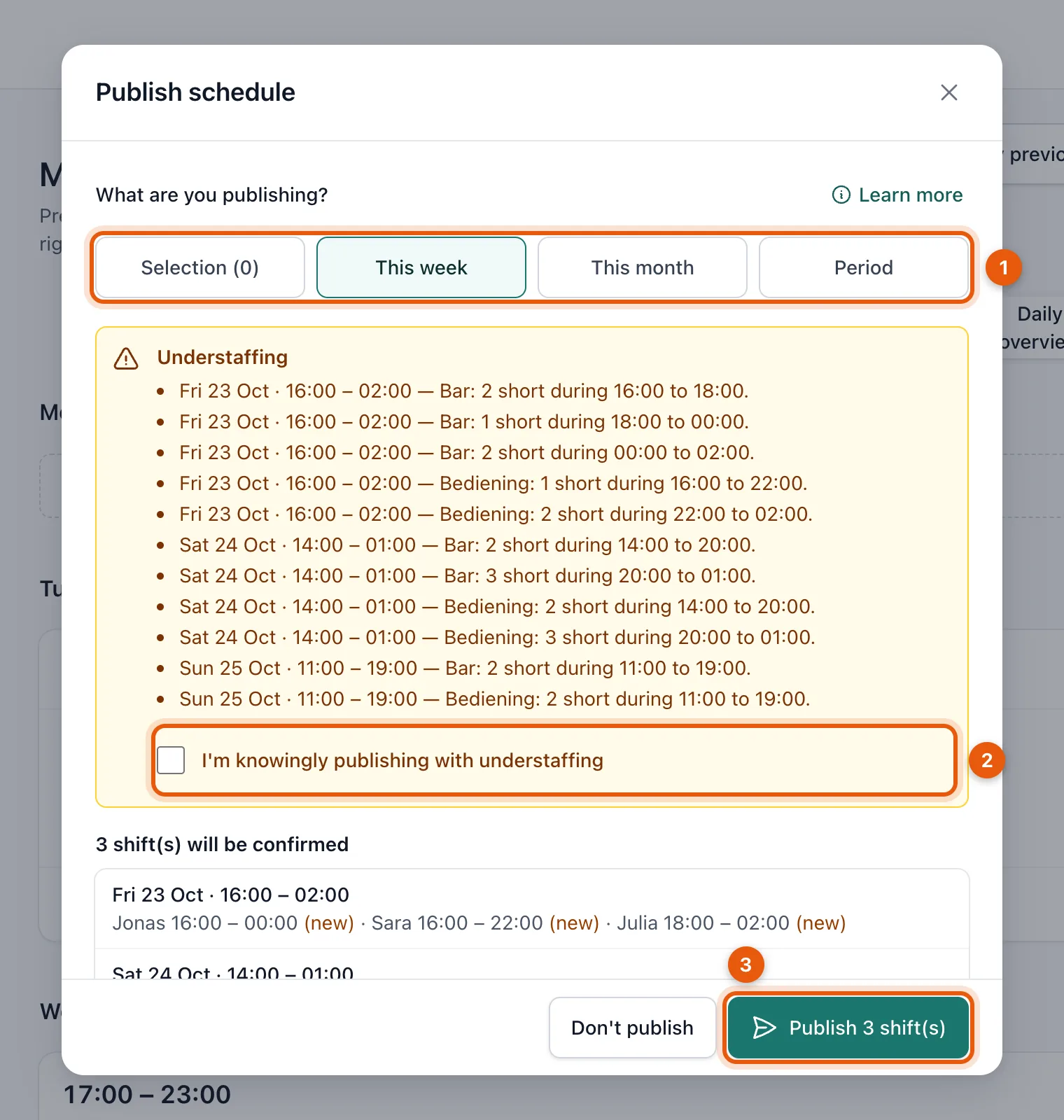
- Choose what you publish (1): your Selection, This week, This month or a Period with a start and end date.
- Check what changes. New assignments are marked (new).
- Click Publish … shift(s) (3).
Who gets a notification?
- Anyone who is scheduled or whose shift changes gets a personal confirmation.
- All active staff get a general notification that there's a new schedule.
- Shifts you don't publish stay unchanged.
Understaffing and conflicts
- Understaffing: there aren't enough people for some hours yet. Add them, or tick I'm knowingly publishing with understaffing (2).
- Conflicts block publishing, e.g. more people on a position than needed, or someone who is now busy elsewhere. The window shows which ones; solve them in the block first. See Schedule people.
Publish only some shifts
- Click Select at the top of the schedule.
- Tick the blocks you want to publish.
- Click Publish selection.
Related articles
- Draft and publishedEverything you plan is first a draft that only planners can see. Your team only sees a shift after you publish it.
- Change or cancel a published shiftIf you change a published shift, the old version stays valid until you publish again. Cancelling notifies the people involved straight away.
- Schedule peopleChoose who works for each position from the candidate list. You see who is available, how many hours they already work and who is busy elsewhere.
Didn’t find what you were looking for? Search again: