Notifications and push notifications
You get a notification for a new schedule, a change or a request: in the app, by email, and as a push notification on your phone if you turn it on.
Who can do this?
Everyone
BarPlanner tells you about what concerns you: a new or changed schedule, a cancelled shift, a takeover request or a decision on your request.
Where do notifications arrive?
| Channel | When |
|---|---|
| In the app (the bell) | Always. Unread notifications are marked New. |
| By email | Always, to your email address. |
| Push notification on your phone or computer | When you turn them on for that device. |
Work at more than one venue? The venue menu shows how many unread notifications you have at your other venues.
Turn on push notifications
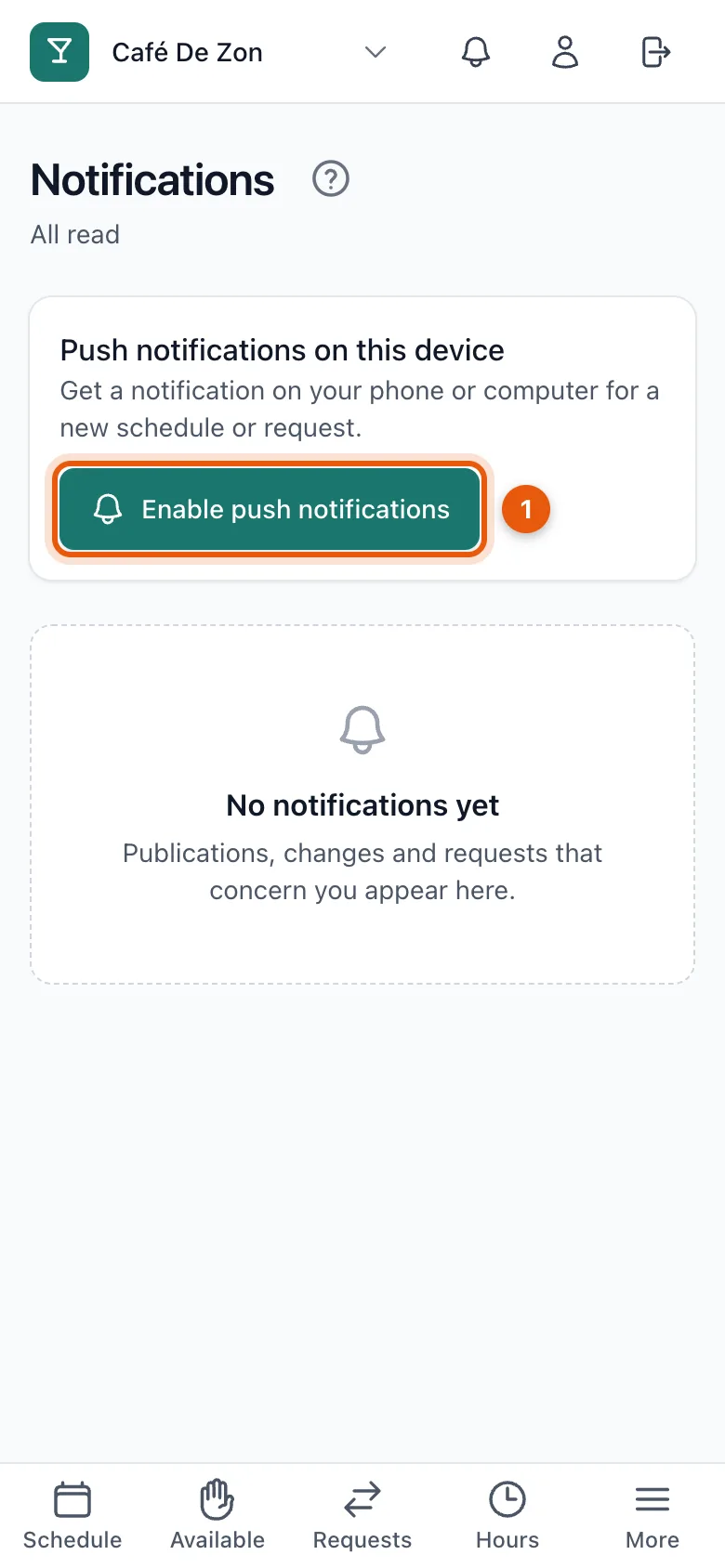
- Open Notifications (the bell at the top).
- Under Push notifications on this device, tap Enable push notifications (1).
- Allow notifications if your browser or phone asks.
Do this on every device where you want notifications. Turn them off with Disable push notifications.
Mark as read
Tap a notification to open it, or tap Mark all as read.
Related articles
Didn’t find what you were looking for? Search again: