Set up positions
Positions are the spots you fill in each shift, like Bar and Floor. You choose them in the second step of the welcome wizard.
Who can do this?
Admin
A position is a spot you need to fill in each shift. For every shift you say how many people you need per position, for example 2 at the bar and 1 on the floor. That way you see right away where someone is still missing.
Choose positions in the wizard
Your venue starts with three positions: Bar, Floor and General.
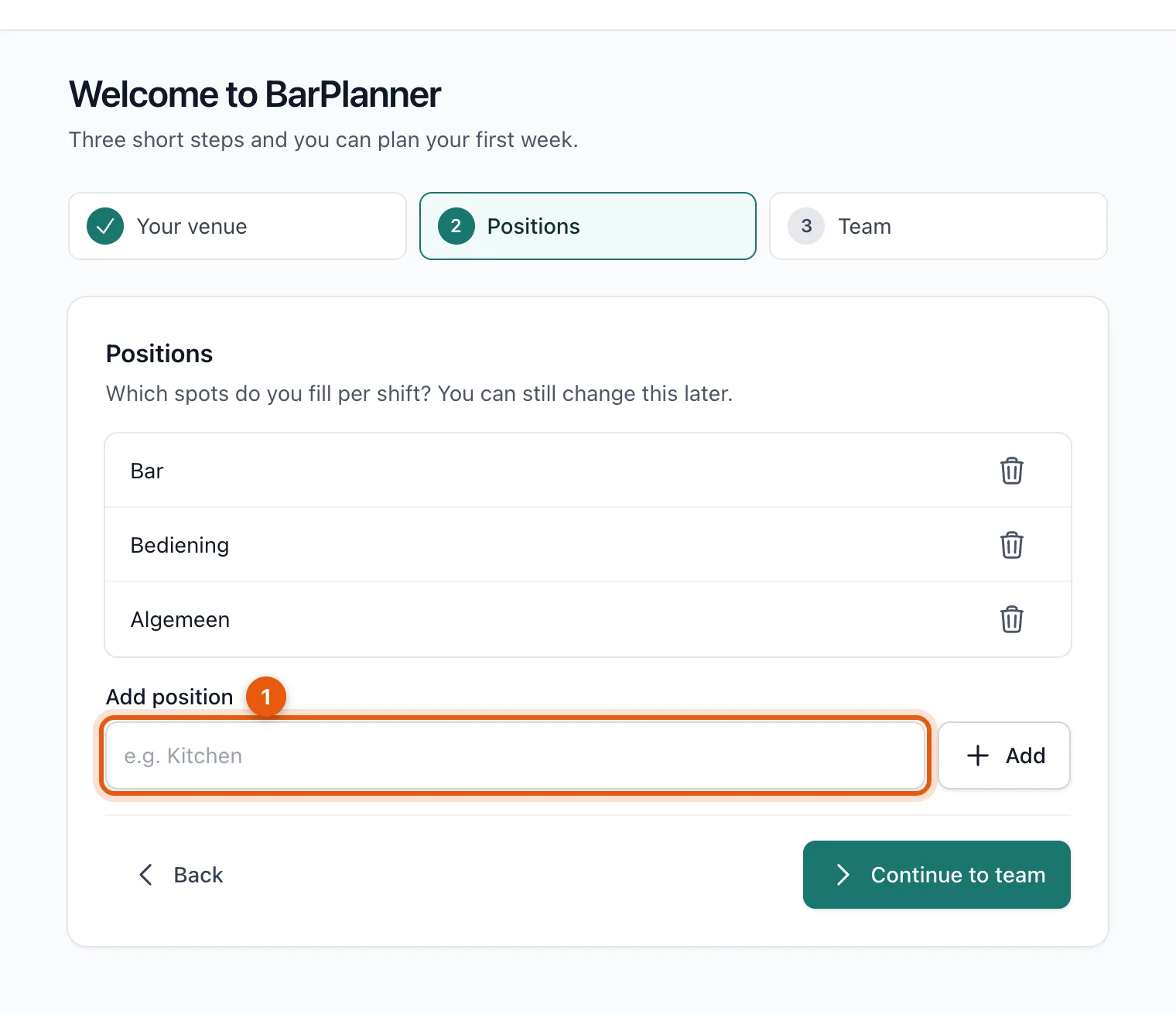
- Type a new position in the field (1), for example Kitchen or Dishes, and click Add.
- Don't need a position? Click the bin icon next to it to delete it.
- Click Continue to team.
Which positions fit which venue?
| Type of venue | Example positions |
|---|---|
| Small café | Bar, Floor |
| Café with a kitchen | Bar, Floor, Kitchen |
| Bar with events | Bar, Floor, Door, Dishes |
Change positions later
Open Positions in the menu (admins and managers).
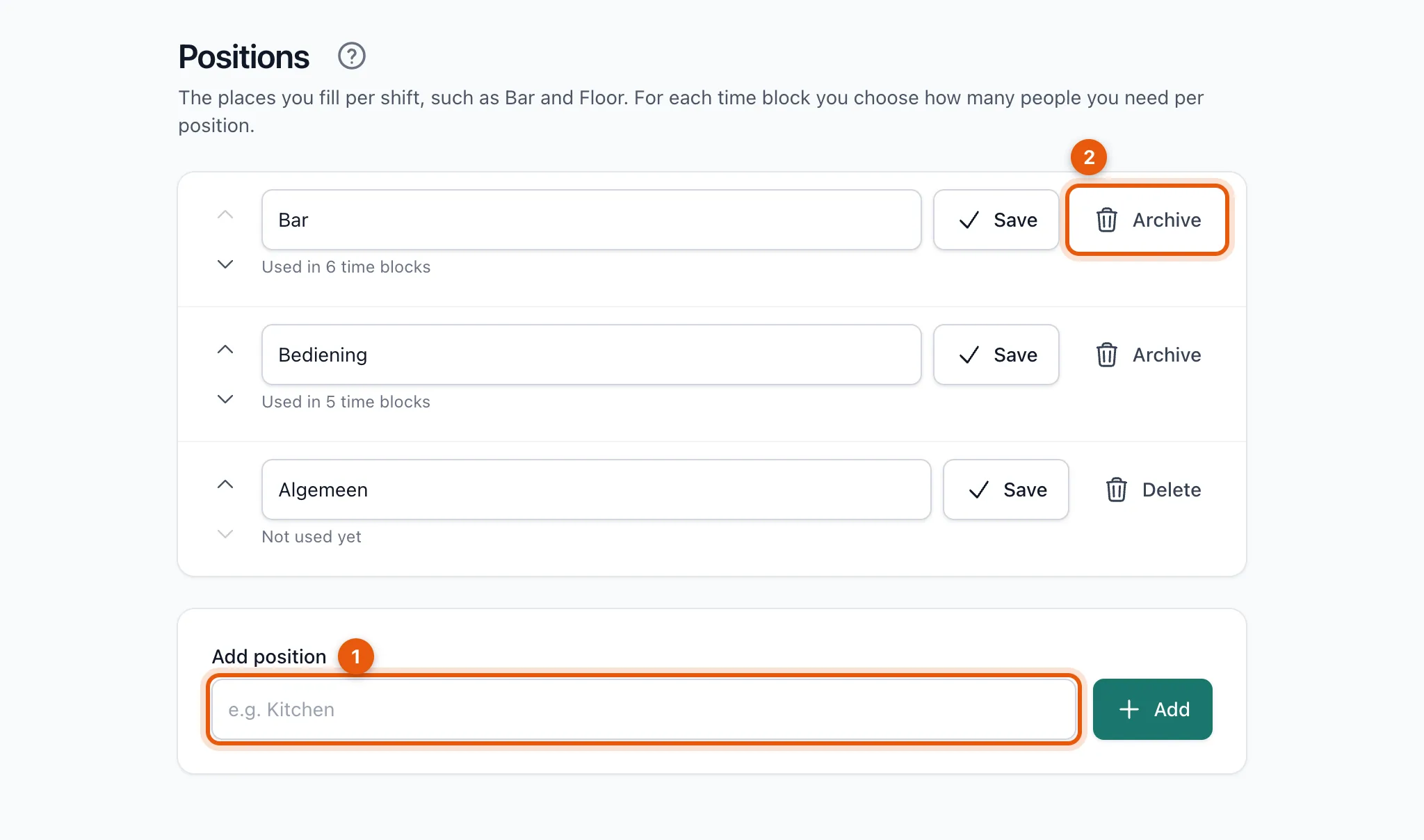
- Add: type the name under Add position (1) and click Add.
- Rename: change the name and click Save. Older schedules show the new name straight away.
- Order: use the arrows to move a position up or down. That's the order in the window for creating a time block.
- Archive (2): a position that's already been used disappears from new time blocks but stays visible in older schedules, hours and exports. A position that was never used is deleted straight away. Under Archived, bring it back with Restore.
Related articles
- Create your venueCreate an account, confirm your email address and fill in your venue's details. You only decide whether to pay after the 30-day trial.
- Plan and publish your first weekCreate time blocks, choose who works in each position and publish the week. Your team only sees the schedule after you publish.
Didn’t find what you were looking for? Search again: