Create and edit time blocks
A time block is a period in which your venue needs people, with a number per position. How to create, edit, duplicate and delete them.
Who can do this?
AdminManager
A time block is a period in which your venue is open and needs people, for example Friday 16:00 – 02:00. For each block you say how many people you need per position. Then you choose who works.
Add a block
- Open Make schedule and click Add shift, or Block next to a day.
- Choose the date, the start and the end.
- Under Required staffing per position, fill in how many people you need per position.
- Optionally give the block a description, e.g. Quiz night.
- Click Save time block.
Edit, duplicate or delete
The actions are at the bottom of each block:
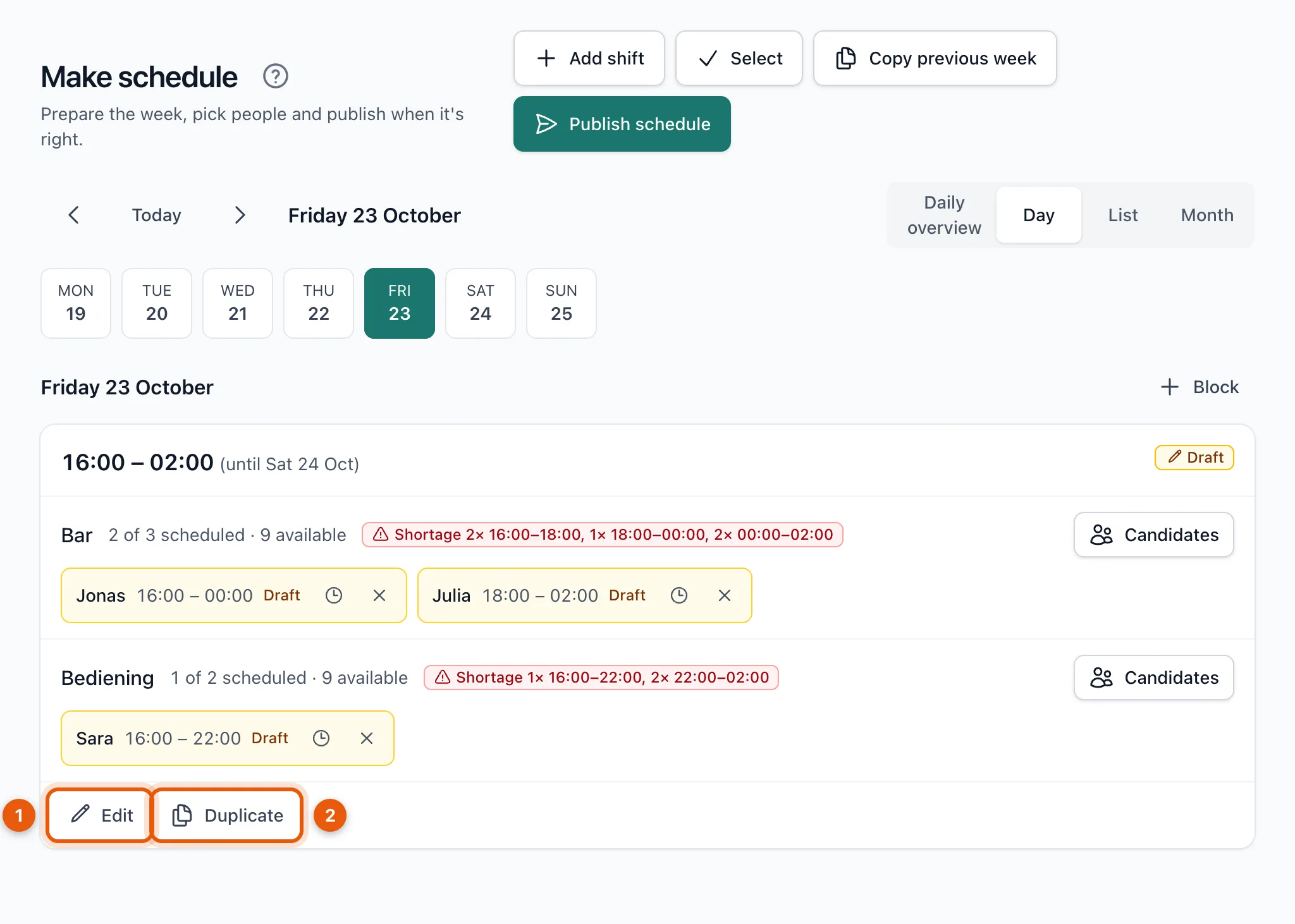
- Edit (1): change the times, description or staffing. In the same window you can also delete a block that isn't published yet with Delete time block.
- Duplicate (2): choose another date and click Copy time block. The block and its staffing are copied, without people.
You can't delete a published block, but you can cancel it. See Change or cancel a published shift.
Viewing the week
At the top right, choose how you want to see the schedule: Daily overview (the whole week by day), Day (one day in detail), List or Month.
Related articles
- Schedule peopleChoose who works for each position from the candidate list. You see who is available, how many hours they already work and who is busy elsewhere.
- Copy last week's time blocksIs your week roughly the same every time? Copy the time blocks and staffing of the previous week in one click, without people.
- Draft and publishedEverything you plan is first a draft that only planners can see. Your team only sees a shift after you publish it.
- Plan and publish your first weekCreate time blocks, choose who works in each position and publish the week. Your team only sees the schedule after you publish.
Didn’t find what you were looking for? Search again: