Invite your team
Invite employees with their name and email address. They get a personal link, which you can also send yourself via WhatsApp.
Everyone you schedule needs their own account. You invite people with their name and email address; they choose their own password. You can also invite your team in the last step of the welcome wizard.
Invite someone
-
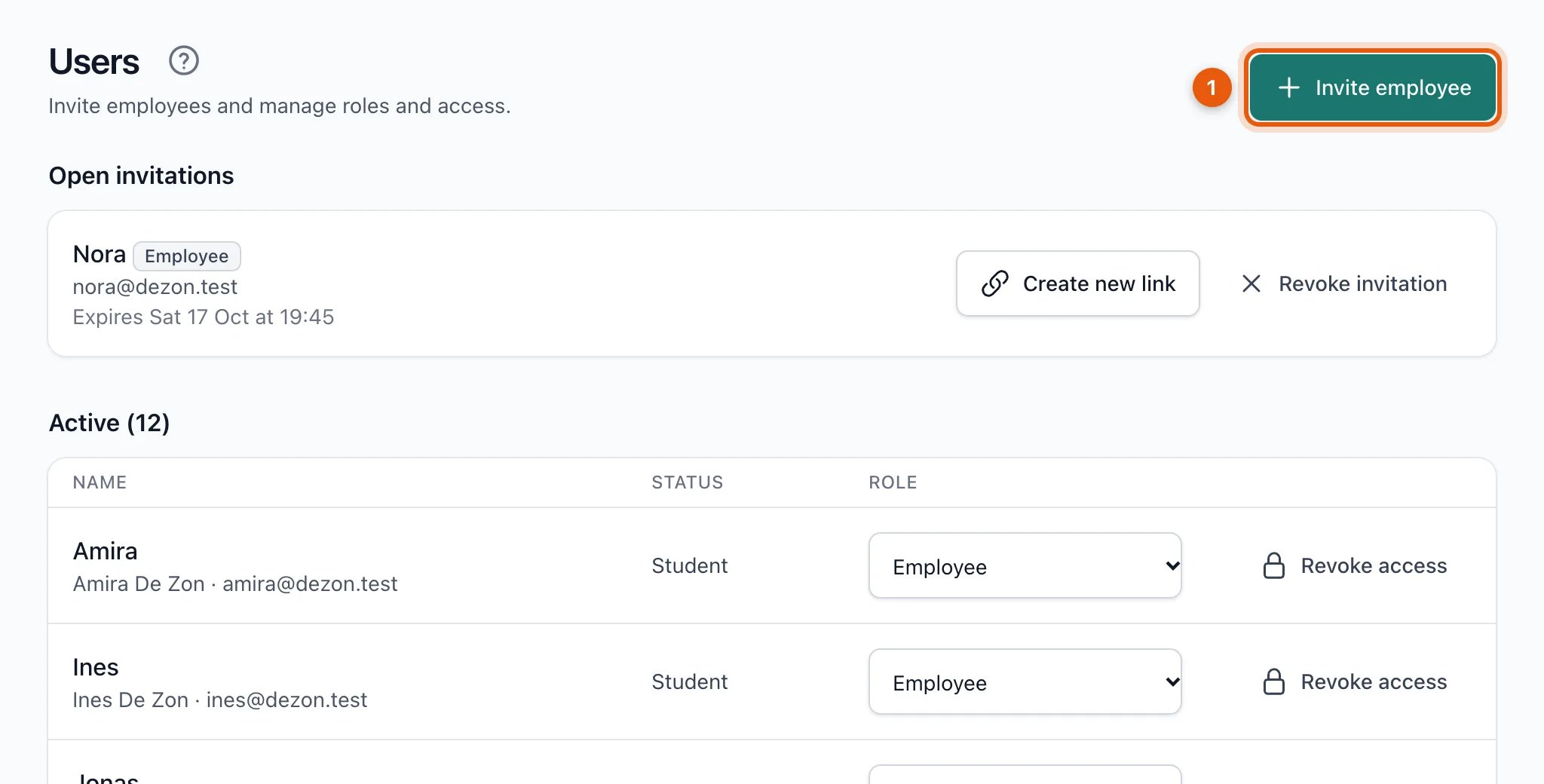
Open Users and click Invite employee (1).
-
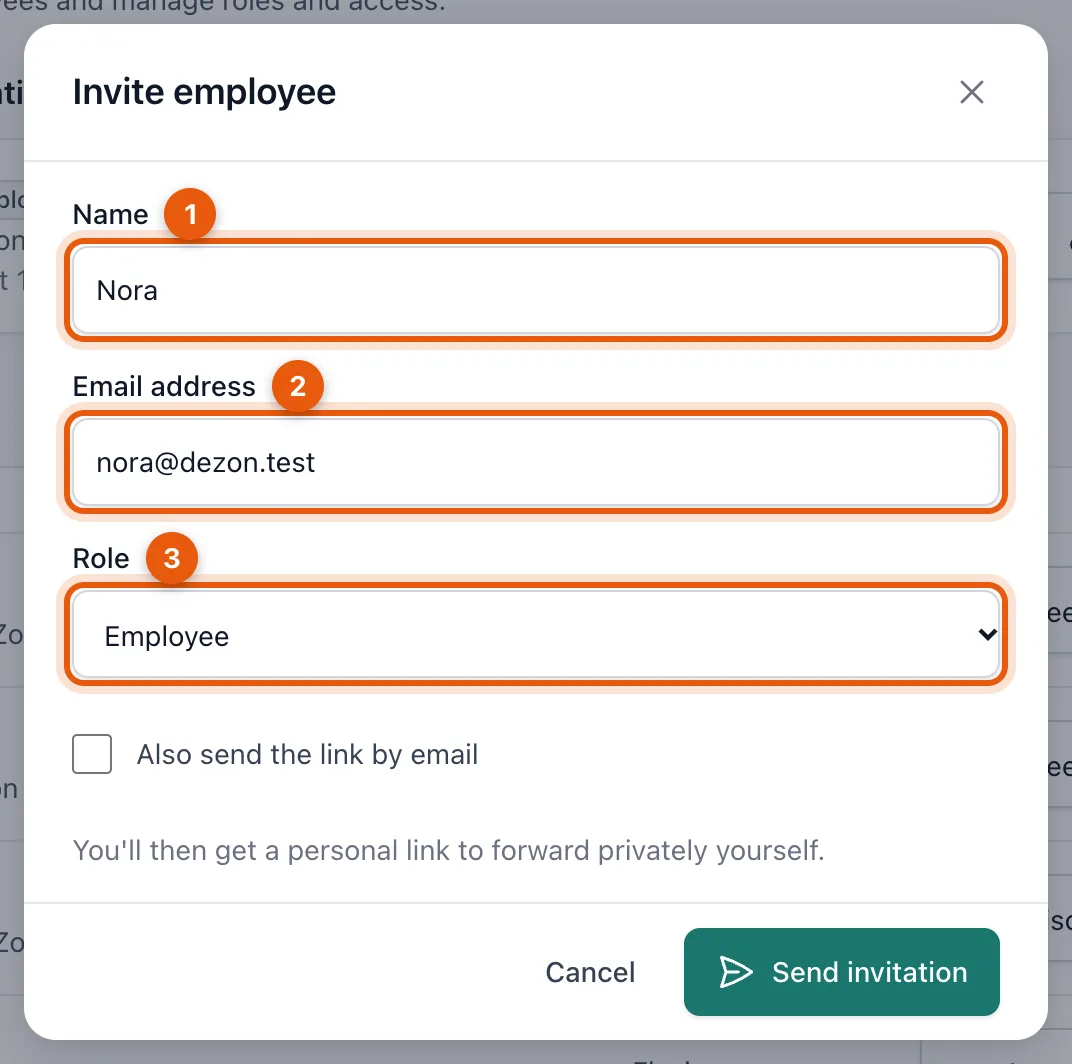
Fill in the Name (1) and Email address (2) and choose a Role (3). For most people that is Employee.
-
Do you want the invitation to go out by email too? Then tick Also send the link by email. If you don't, you send the link yourself (see below).
-
Click Send invitation.
Send the link yourself
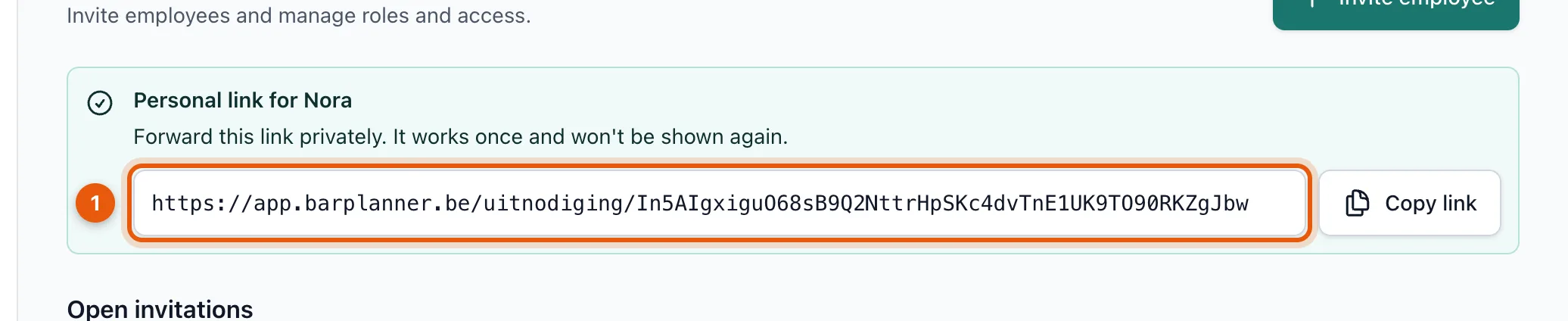
After sending, you see a personal link (1) once. Copy it with Copy link and send it privately, for example in WhatsApp. Handy if the email ends up in spam or if you'd rather send a message yourself.
Which role do you choose?
| Role | Can |
|---|---|
| Admin | Everything, including billing, venue data and managing other admins |
| Manager | Plan, publish, approve requests, export hours, invite people |
| Supervisor | View availability, drafts and everyone's hours, but change nothing |
| Employee | Own availability, schedule, swaps and cancellations |
Someone didn't get an invitation
- Check the junk mail folder together.
- Is the email address right? If it's wrong, revoke the invitation and invite again.
- Expired or lost? Under Open invitations, click Create new link and send that one.
Related articles
- Install the app on your phonePut BarPlanner on the home screen of your iPhone or Android. You open your schedule with one tap and get notifications.
- Plan and publish your first weekCreate time blocks, choose who works in each position and publish the week. Your team only sees the schedule after you publish.
- Contact usSearch the help first; email [email protected] about bugs, payments, access to your account and privacy requests.
Didn’t find what you were looking for? Search again: