Plan and publish your first week
Create time blocks, choose who works in each position and publish the week. Your team only sees the schedule after you publish.
Planning takes three steps: you set up the time blocks, you choose who works and you publish. Until you publish, everything is a draft that only you and your managers can see.
1. Create time blocks
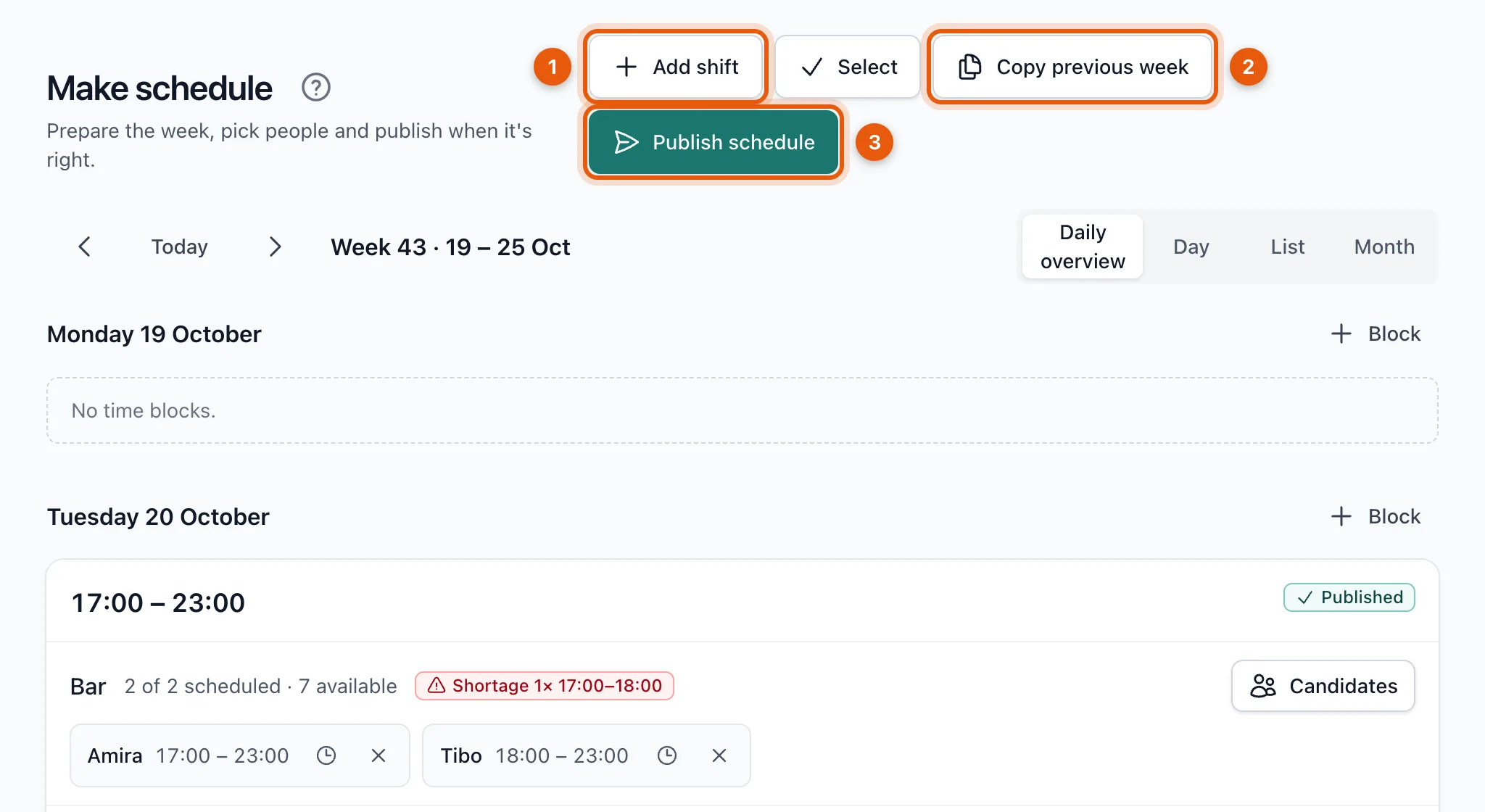
Open Make schedule. You see the week with the time blocks for each day.
-
Click Add shift (1).
-
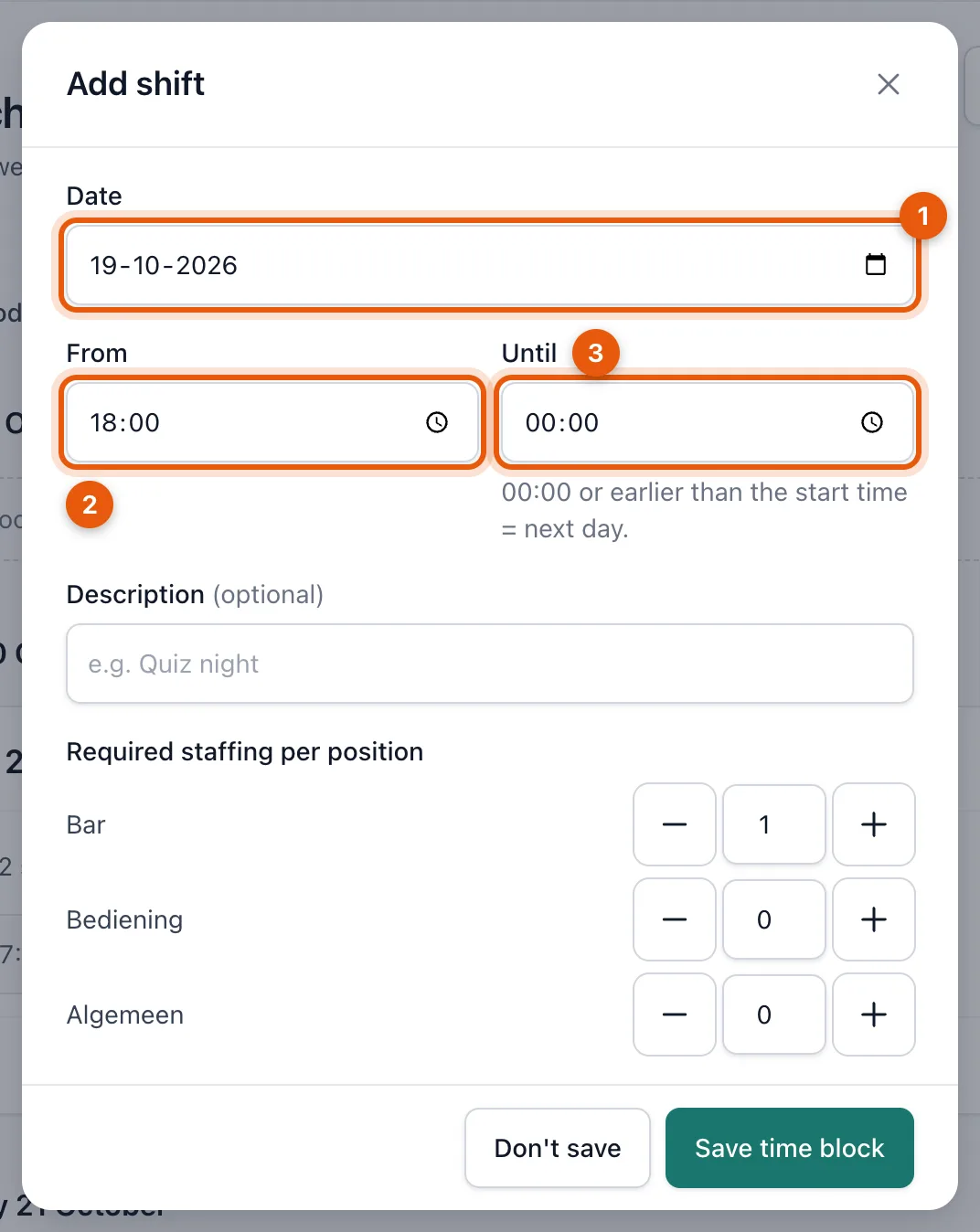
Choose the Date (1), From (2) and Until (3), and fill in how many people you need per position. Does the block run past midnight? Just fill in the end time, e.g. 02:00: an end time earlier than the start counts as the next day.
-
Click Save time block.
2. Choose people
In a time block, click Candidates next to a position. You see who is available and how many hours everyone is already scheduled that week.

- Click Select (1) to schedule someone. You can choose different hours per person within the block.
- busy at another venue (2) means that person is already working at that time at another venue that uses BarPlanner. You only see that this is the case, not where.
3. Publish
Click Publish schedule (3). You first see what changes and who gets a notification.
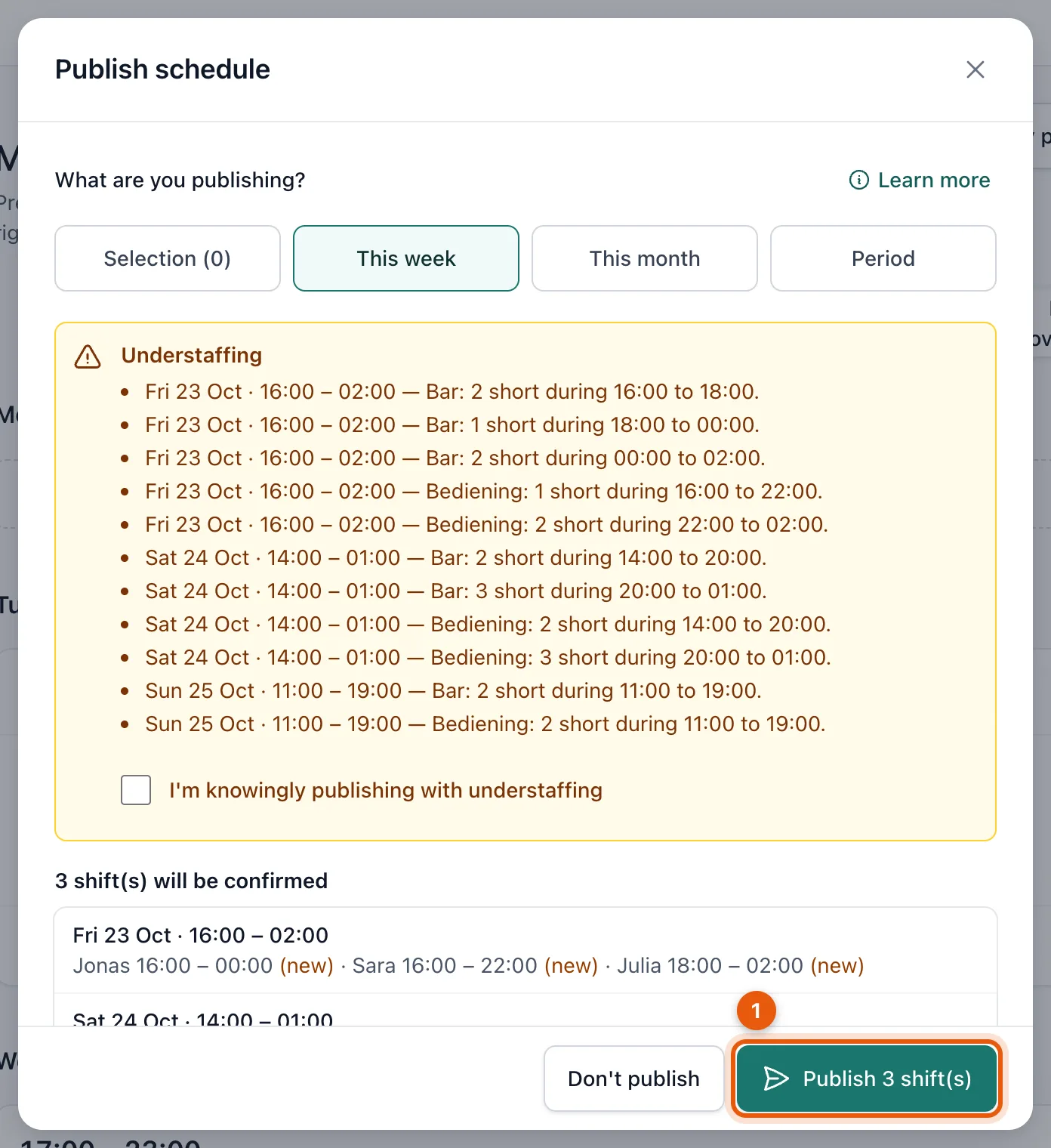
Do you see Understaffing? Then you haven't scheduled enough people for those hours yet. Add them first, or tick I'm knowingly publishing with understaffing if that's what you want. Then click the Publish … shift(s) button (1). Everyone who is scheduled or whose shift changes gets a notification in the app and by email, and a push notification if they turned those on on their phone.
Related articles
- Invite your teamInvite employees with their name and email address. They get a personal link, which you can also send yourself via WhatsApp.
- Set up positionsPositions are the spots you fill in each shift, like Bar and Floor. You choose them in the second step of the welcome wizard.
- Install the app on your phonePut BarPlanner on the home screen of your iPhone or Android. You open your schedule with one tap and get notifications.
Didn’t find what you were looking for? Search again: